Drawing a N% Channel:
- Select the N% Tool from the Charting Toolbox.
- Position the mouse pointer where you would like to place the top
left point of the channel and left click, continue to hold down the
mouse dragging it to the right bottom point of channel, release
mouse button to place.
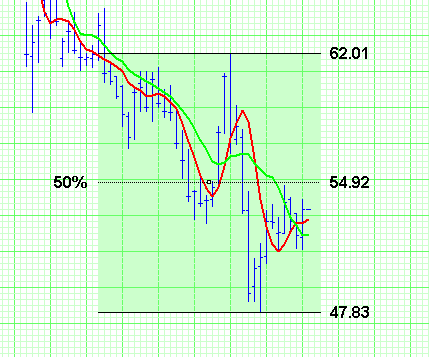 |
The default retracement on the N% tool is 50%.
Moving the % Line:
- Select the channel drawing by clicking on it.
- You will notice that the middle line has a box in the middle
of the line. This is the handle that you will use to change
the position of the Percentage line within the tool drawing.
As you change the position of the Percentage Line, the percentage
value to the left will change as well.
Moving the N% Tool:
Left click on the channel and drag the tool, release mouse
button to place drawing.
Deleting the N% Channel:
Select the drawing by clicking on it and press the Delete Key
on your keyboard.
Resizing the N% Channel:
- Select the drawing by clicking on it.
Note: The drawing is selected when boxes appear
on the corners.
- Click on one of the boxes on the corners to drag the select
point and release the mouse button.
Changing Properties of a N% Channel:
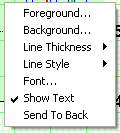
- Right-Click on the drawing to view the properties menu. (see
below)
- Properties that can be changed are:
- Foreground: Changes the color for top and bottom lines of the
channel.
- Background: Changes the inside color of the channel.
- Line Thickness: Changes the thickness of the channel lines.
Choose values from 1-6.
- Line Style: Changes The line style of the channel lines.
Choose from solid, dashed, dotted and more.
- Font: Changes font, size, style, and color of text.
- Show Text: Select\Deselect to view or hide the text on the
channel.
- Send to back: Changes the layer of the tool. This option is
used when more than one tool is in the same area of the chart. Click
on Send to back when you need to access a tool under the N% Channel
Drawing.
 |
|
