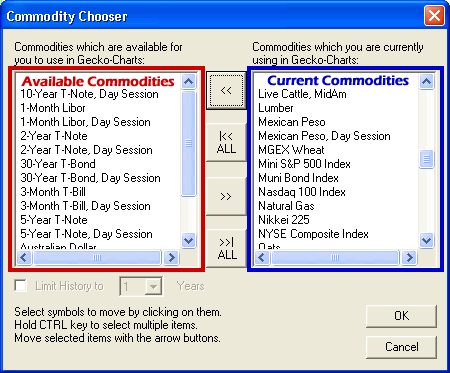
Click on the commodities that you would like to
track in the left window. You can select more than one commodity to
transfer.
Next, Click on the >> Button or double click
on a commodity to move them to the right window. (When you are finished,
the commodities listed in the right window will be listed in the menus of
the Commodity Window of Track 'n Trade Pro. If there are
commodities already listed in the right window, these commodities are
currently available in Track 'n Trade Pro.)
If you would like to have access to all of the
commodities on the list click on the >>|All Button located below the >>
Button. This button will move all commodities to the right window.
When you are finished selecting commodities click
on OK and Track 'n Trade Pro commodities will immediately be updated.
Select commodities in the right window that you
would like to stop receiving data for.
Next, click on the << Button or double click the
commodity to move to the left window.
When you are finished removing commodities from the
right list, click OK and the commodities will be immediately updated.
Note:
Saved Books containing charts from commodities that you have removed from
the chart window, will not be affected by the Commodity Chooser. This
Chooser will not delete data from your hard drive. You will still be able
to access the saved charts. The Commodity Chooser will eliminate this
commodity from the Chart Window and from the Daily Data Downloads.
Historical History Option:
If you would like to control how much historical
data is shown for all commodities, click on the check box under the
commodity windows in the Commodity Chooser (see below). This will
select the Limit History option and allow you to specify the number of
years desired. Click on OK to save your changes.
Note:
This option does not control the amount of data stored on your hard drive,
it simply controls the data that is displayed in the Commodity Window drop
down menus. If you were to manually type the symbol (in the Easy
Symbol Search) to a chart not seen in the menus it would be displayed. To
remove data from your hard drive, see UnInstalling Track 'n Trade Pro.
If you would like to start receiving data for a
contract that you have removed, simply follow the Selecting Commodities
steps and it will again be added to your Chart Window and Data Downloads.
See Data Subscriptions for more information on the commodity contract
available.
Note:
When you add commodities to your data set, the Data Download Utility will
retrieve any missing historical data for the commodity the next time you
download data. See Example for further clarification.
Example:
Tom installed Track 'n Trade Pro and chose all available contracts for the
first couple of weeks of use. After awhile he decided to remove Corn from
his data set. Three weeks later he began looking at the Corn contracts
again, and adds the commodity to his data set. When he downloads data the
next time, the server notices that Tom is missing 3 weeks of data for Corn
and sends that additional historical data down with the daily data
updating the data for Corn.