Placing a Futures Order
There are two ways in which an order can be placed in Track 'n
Trade Pro.
-
Order Placement Tool.
-
Order button in My Account Window.
Order Placement Tool

To Place an Order:
- Click on the Order Placement Tool on the Toolbox.
- Left click and slide your order up and down the vertical axis of
the last day of the chart to find your order point.
- Release the mouse button and the order placement dialogue box will
open:
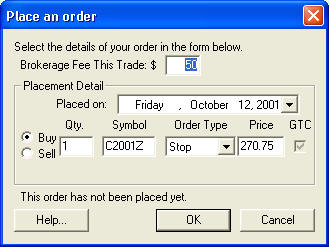
- Fill out the information in the order placement window.
- In this window, you can specify the brokerage fee (per side), date
order placed, buy or sell, quantity of contracts, symbol of contact,
order type and change the price on the order. Also, Help options
are available to give instructions on the different types of orders.
- Click on OK to place the order and Cancel to dismiss order screen.
My Account - Placing an order
To Place an Order:
- Click on the Order button in My Account Window.
- Release the mouse button and the order placement dialogue box will
open:
- Fill out the information in the order placement window.
- In this window (see above), you can specify the brokerage fee (per
side), date order placed, buy or sell, quantity of contracts, symbol
of contact, order type and change the price on the order. Also,
Help options are available to give instructions on the different types
of orders.
- Click on OK to place the order and Cancel to dismiss order screen.
1.
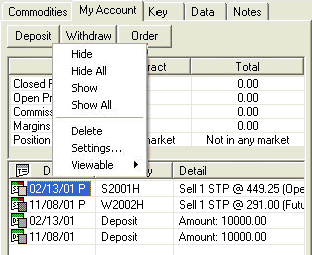
Right Click on the order date of the order listed in My Account this will
open the options menu.
2.
Next click on the Hide/Show item. (See screenshot below)
Note: If you
would like to hide/show all orders use the Hide All/Show All items.
To Cancel or Delete an unfilled order:
Click on the order listed in My
Account, when the order is highlighted press the Delete Key on your
Keyboard.
Note: If you delete a chart in the Commodities Window, this
will not delete any orders placed on that chart. If you want to
delete the orders you must do so on a chart or in My Account Window.
Also, if you delete an order on the Chart, it will merely hide the
order, you must delete orders from the My Account Window.
Edit an Unfilled Order:
- To edit an order on a chart, right click on the order and select
Settings to view the order placement window.
- To edit an order in My Accounts Window, double-click the order to
open the order placement window.
To Change the Way the Orders are Listed:
- Right Click in the Active Chart Section.
- Choose Viewable and from the submenu select from the following:
- All Transactions: This option will show all orders, deposits, and
withdrawals from all charts in the open Book.
- Orders from this Chart: This option will show only orders on the
selected chart.
- Only Orders: This option will show all orders in the open Book.
Sorting Orders, Deposits, and Withdrawals:
There are two ways to sort in the My Account Window, by date or commodity:
- To view orders by Date, click on the Date button at the top of the date
column. This option will sort orders, deposits, and withdrawals by date.
- To view orders by Commodity, click on the Commodity button at the top of
the commodity column. This option will sort all of the commodities by
alphabetical order and then the withdrawals and deposits at the bottom.
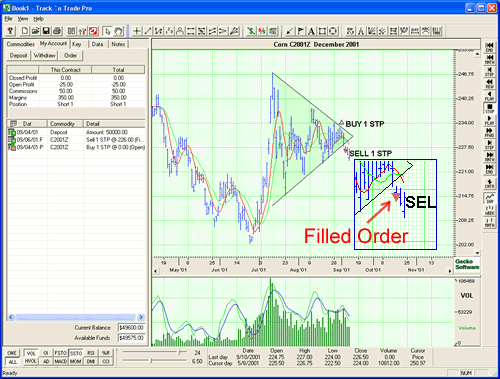
A Filled Order:
When you order is filled, the triangle will fill in red on the chart (see
chart below). In My Account Window, the icon will fill green and an F will
appear after the icon. See My Account Window for
more details.